Billing — Help
How to Cancel Your Subscription
Step-by-step instructions for cancelling your Sidekick for InDesign subscription through FastSpring.
Why cancellation isn’t in your Adobe account
Sidekick is sold on Adobe Exchange, but payments are processed by FastSpring — Adobe’s payment partner for third-party extensions. This means your subscription won’t appear under your Adobe account’s Plans & Products page.
To cancel, you’ll need to go through FastSpring directly.
Step 1: Find your FastSpring confirmation email
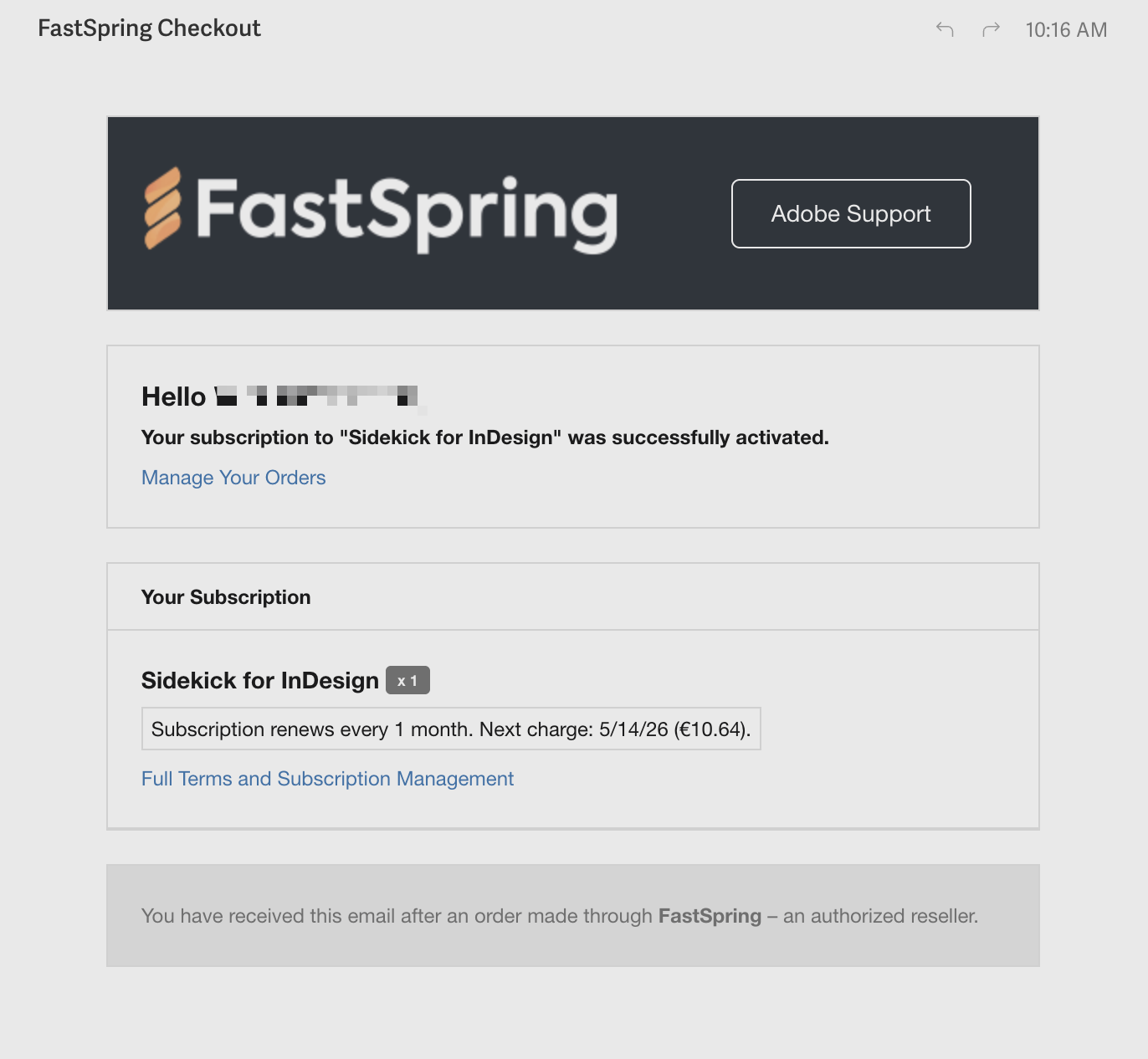
Search your inbox for emails from [email protected] (sender name “FastSpring Checkout”) — the subject line likely contains “your subscription to Sidekick for InDesign was successfully activated”. You received this when you first subscribed. Here’s what the email looks like:
Step 2: Click “Manage Your Orders”
Click the “Manage Your Orders” link near the top of the email. This takes you to the FastSpring subscription management portal.
Step 3: Cancel your subscription
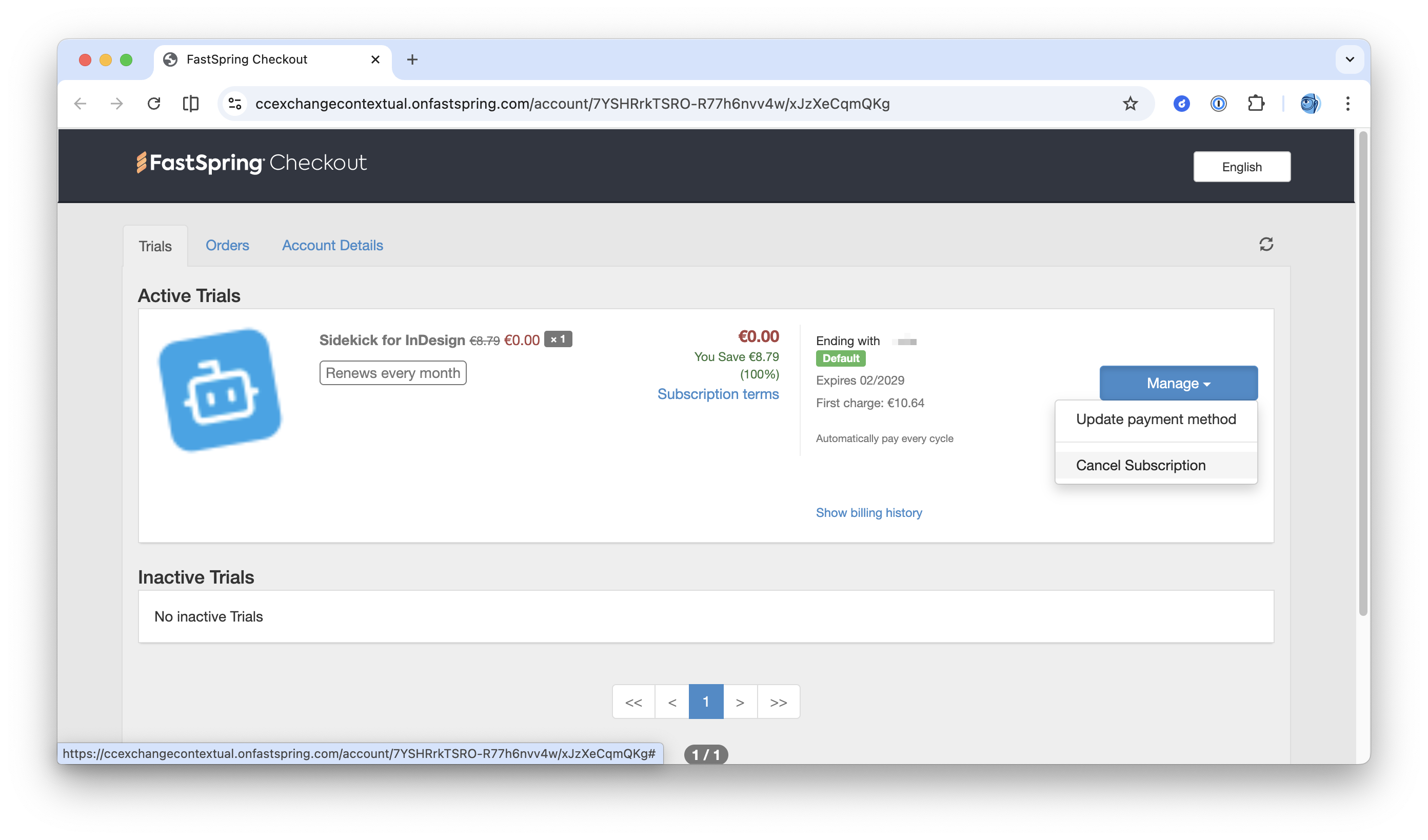
Click the “Manage” button next to your Sidekick subscription, then select “Cancel Subscription”.
Step 4: Confirm
Confirm the cancellation when prompted. You’ll see the subscription marked as cancelled with the end date of your access.
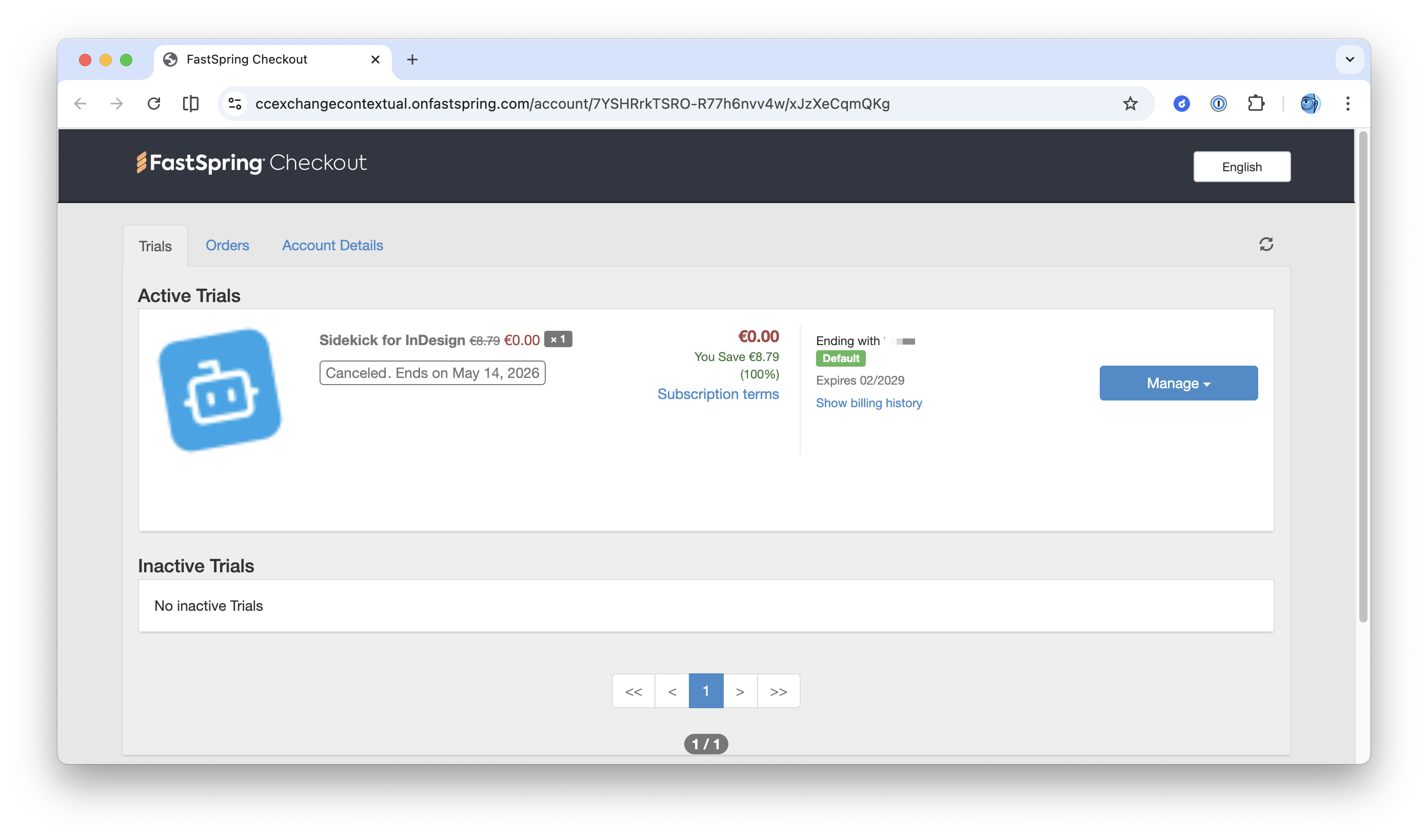
That’s it. You’ll receive a confirmation email from FastSpring.
Can’t find the email?
Visit fastspring.com/account and enter the email address you used when subscribing. FastSpring will send you a link to manage your subscription.
What happens after you cancel
- You keep access to Sidekick until the end of your current billing period.
- After that, the plugin will stop working.
- Your InDesign documents are never affected — Sidekick doesn’t modify them on its own.
Want to resubscribe?
You can resubscribe anytime from Adobe Exchange.
Can you cancel it for me?
Unfortunately, no. Because billing is handled entirely by FastSpring, we (the Sidekick team) have no access to your subscription or payment details. We literally cannot look up, modify, or cancel subscriptions on your behalf. You’ll need to cancel directly through FastSpring using the steps above.
Need help?
- Billing questions: [email protected]
- Product support: [email protected] (we can help with the plugin, but not with billing)
See also: Billing and Subscriptions for more details on how billing works.
Still stuck?
Write to [email protected] and tell us what you are seeing. A person answers.