What it can do
Read and change your document, follow and undo each step, see and measure your pages, and save what works as an action.
Read and change your document
Your assistant works through InDesign’s scripting, so it can read your document and change what scripting reaches: styles, text, frames, tables, colours, pages, PDF export. It can’t change settings that scripting doesn’t reach.
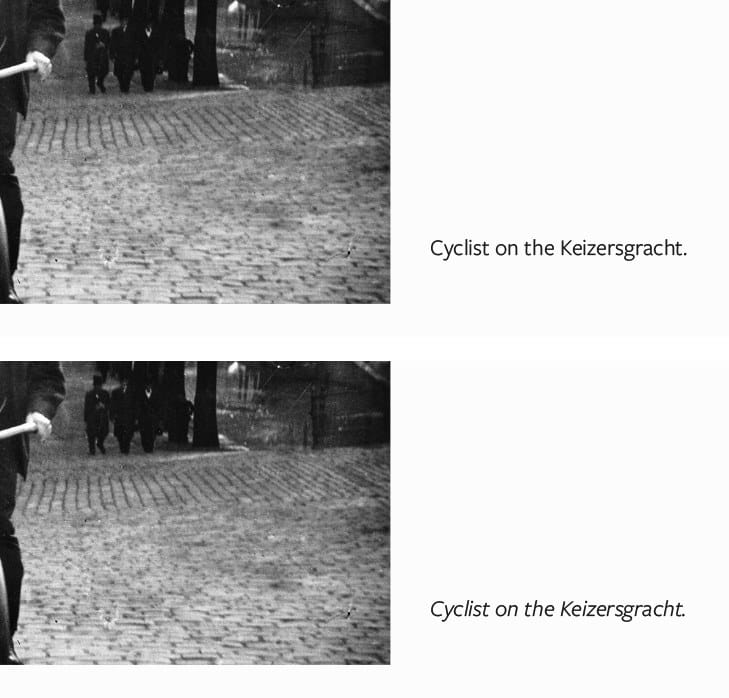
Make every caption in my InDesign document italic.
Follow along in InDesign
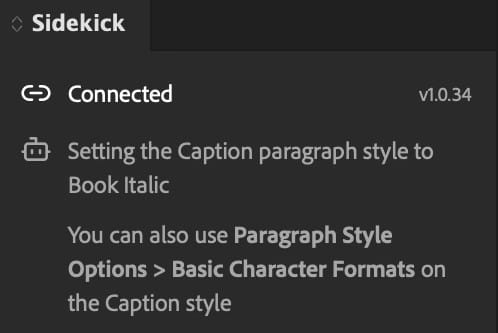
While your assistant works, the Sidekick panel says what it is doing, and where you would do the same by hand.
Undo a change
Each change your assistant makes in the document is a step under Edit → Undo, with a name that says what it did. A small request is usually one step; a big one can be several. Save before a change across the whole document, and if you don’t like the result, use File → Revert.
Your assistant can still get things wrong, so look at the result before anything goes to print.
See your pages
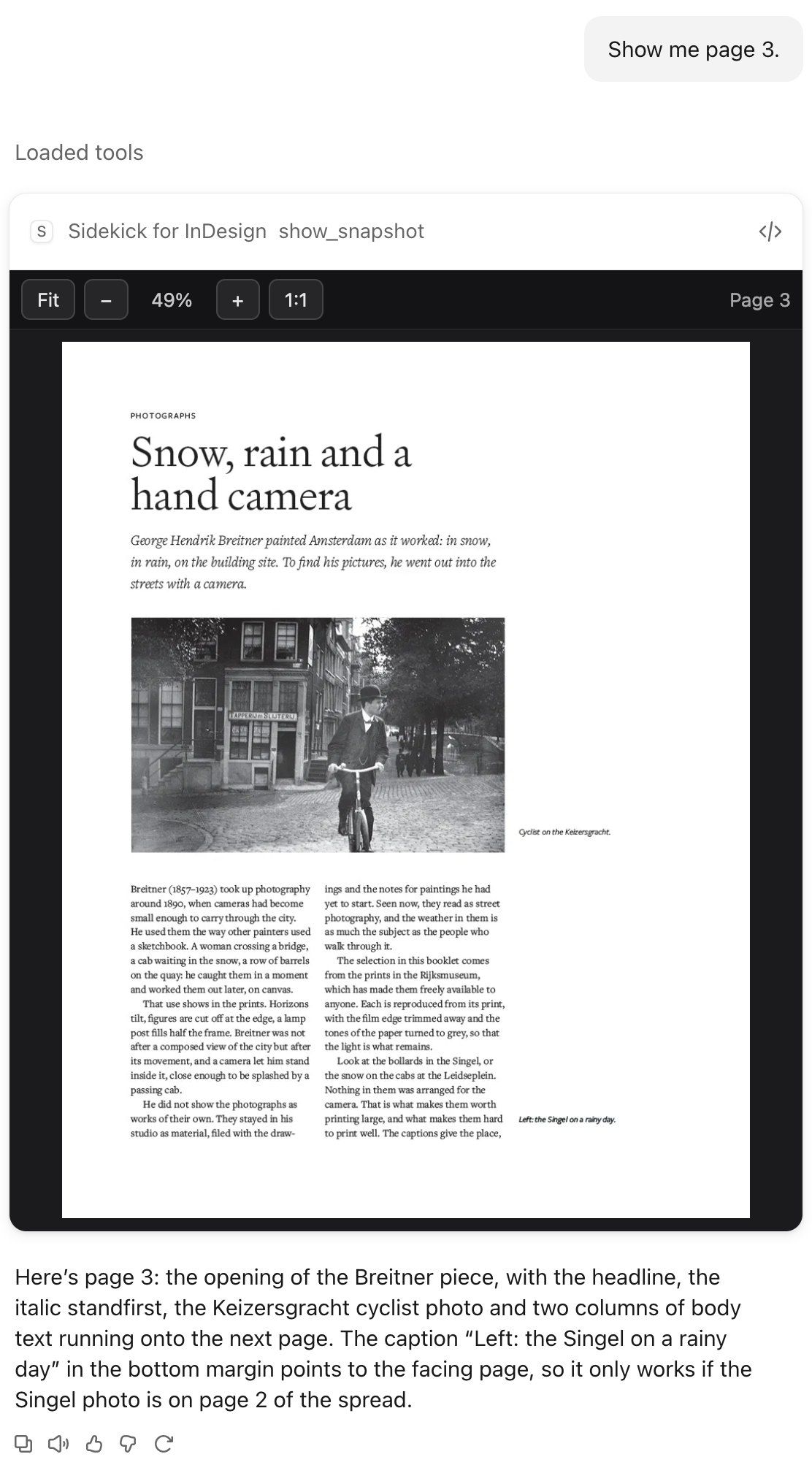
Your assistant takes pictures of your pages, of spreads, or of a single object, sharp enough to check details. It uses them to check its own work, and shows you what it sees when you ask. In Claude Desktop, and other assistants that support it, the page appears in the chat, where you can zoom in with + or 1:1.
More in Show, Don’t Tell and Sidekick Just Got a Loupe.
Measure the page and the type
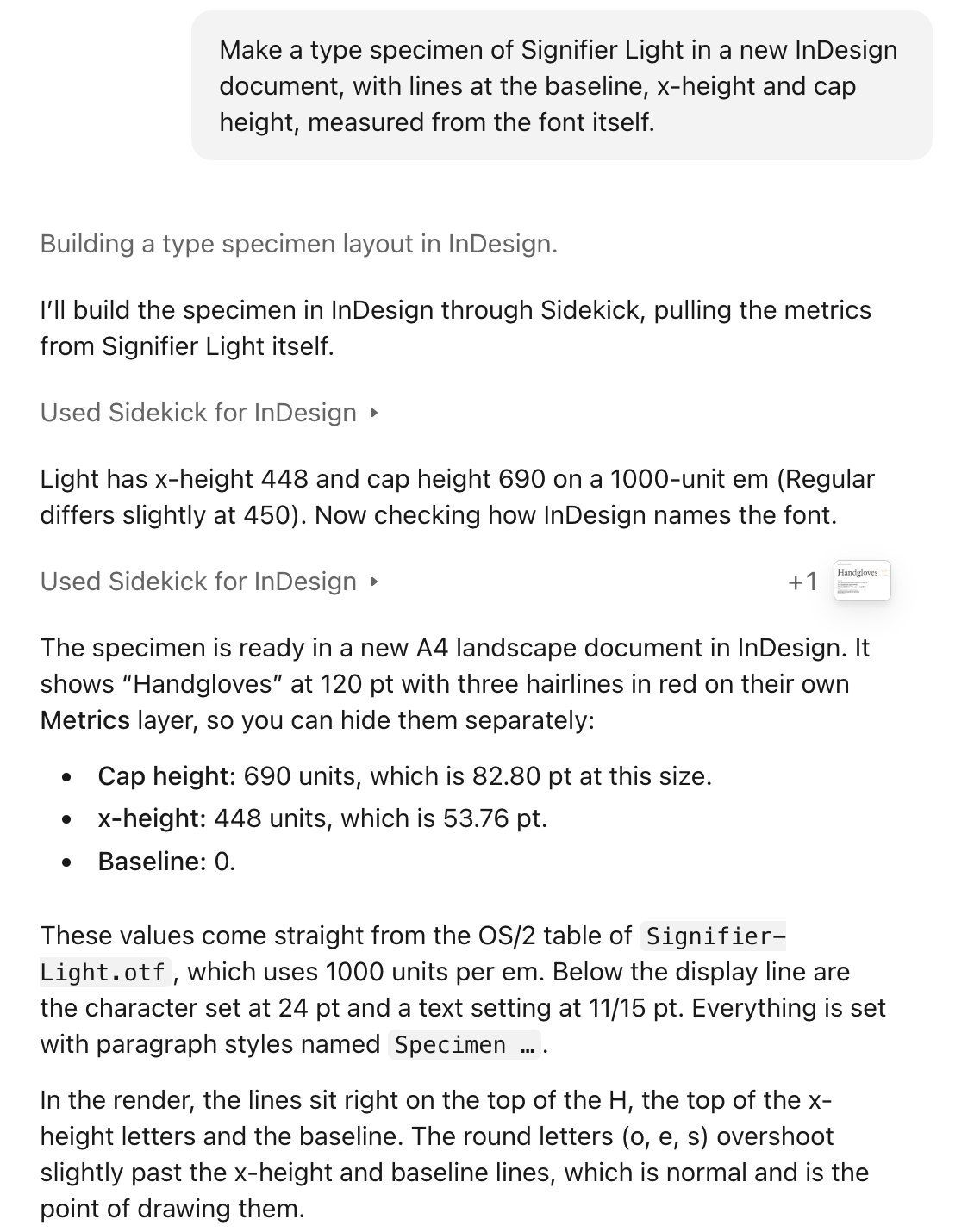
Your assistant can read a page’s geometry: its size, margins, columns and frames. Sidekick also reads a font’s x-height and cap height from the font file, which InDesign doesn’t provide.
With those, your assistant can place things exactly against the type: two typefaces matched on x-height, a rule on the x-height, a photo’s top edge at the cap height. Name the line you mean and add “measured from the font”.

More in Precise Typography with Font Metrics.
Save it as an action
When something works, ask your assistant to save it as an action. An action can have settings, such as a minimum resolution, and runs again from the chat or with one click in the Sidekick Actions panel (Plug-Ins → Sidekick → Sidekick Actions). Ask your assistant to list, show or delete your actions. To share actions with a team, ask your assistant to add a shared folder that everyone can reach.
Check my InDesign booklet for anything a printer would send back. Then save that check as an action called print check.
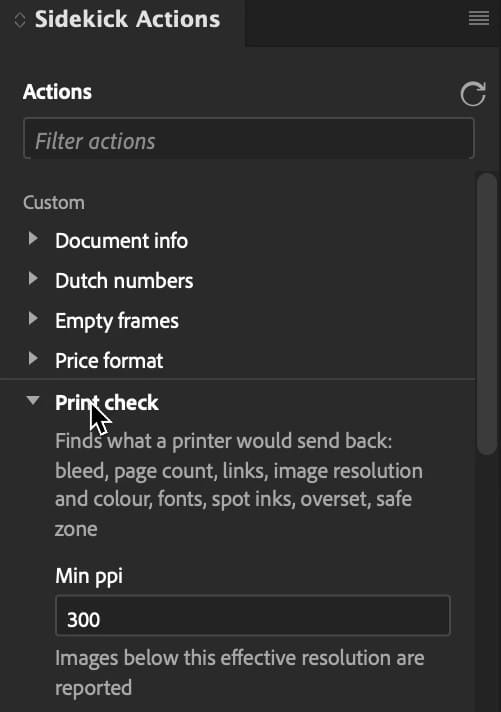
More in Introducing Sidekick Actions.
Use the built-in actions
Sidekick comes with four actions of its own, under Built-in in the Sidekick Actions panel: Alt text audit, Dutch typography, Overset hunt and Rich black sweep.
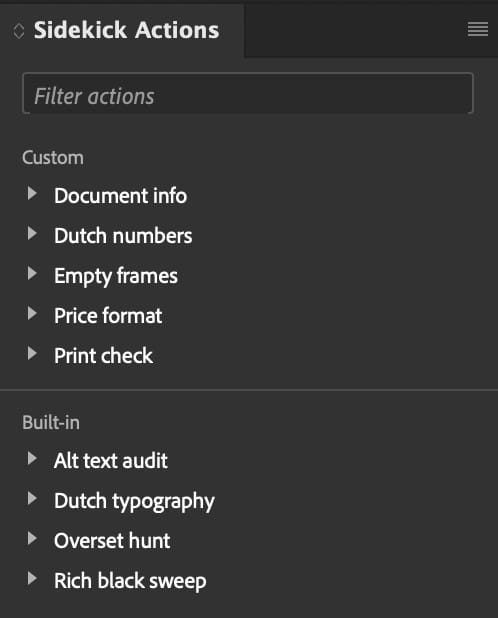
More on one of them in Auditing Alt Text in InDesign, in One Pass.
Something this guide doesn’t answer? Write to [email protected]. A person answers.
Not using Sidekick yet? Install it.