Today we’re introducing Sidekick Actions: ask once, and from then on it’s one click.
Ask Claude (or any other AI assistant) to do a job in InDesign, the way you already do with Sidekick. When the result is right, say “save this as an action”. From then on that job is a button in a new panel inside InDesign. One click runs it again, on any document, the same way every time. No chat, no waiting, and your assistant doesn’t even have to be open.
This is the feature we’ve been most excited to build. Until now, Sidekick did a job and was done. With actions, it can leave a tool behind. Every job you’re happy with can become a button, and over a few weeks InDesign fills up with your own tools: made for your documents, your house style and your printer, without you writing a line of code.
Actions come with Sidekick 1.0.34, as part of your subscription.
Why we built it
InDesign has always had an answer for work you do over and over: write a script. Check every document for overset text before it goes out. Find the images without alt text. Fix the Dutch quotes and dashes in every chapter. A script does it in a second, every time, the same way.
The catch is the word script. Most designers never write one, and the ones who do know what it costs: an afternoon with the scripting documentation, then another one when InDesign does something the documentation didn’t mention.
Sidekick already let you skip that. You describe what you want, and your assistant writes the code and runs it in InDesign for you. But that code was gone once the chat ended. Next week, for the next document, you’d ask again, wait again, and hope it did the same thing again. A skill (written instructions for your assistant) makes the answer more consistent, but you still start a chat and wait while the assistant works through it again.
Actions keep the code. The AI is needed once, to work out how to do the job. After that, the job is yours.
What an action is
An action is what your assistant did, saved so you can run it again. You don’t write or save a file yourself. At the end of a request, or afterwards, you tell your assistant:
Save this as an action.
That’s all. Sidekick stores it under a name.
From then on you can run it two ways:
- From the chat, in any assistant connected to Sidekick: “run check-before-print on this document”.
- From the Sidekick Actions panel in InDesign, with one click. No chat, no waiting for the assistant, no AI usage spent.
The second one is the point. An action runs inside InDesign, by itself. A skill tells your assistant how to do a job; an action is the job itself, as a button in InDesign.
An example: the check before print
In the video, the document is a four-page booklet about the photographs of George Hendrik Breitner, about to go to the printer. This is the request:
Check this booklet for anything a printer would send back before I export it: overset text, images without alt text, images below 250 ppi effective resolution, RGB images, and text under 12 pt in rich black. List each problem with the page it is on. Then save the check as an action called check-before-print, so I can run it from the Sidekick Actions panel before every export.
Claude works through the document, finds five problems and lists them by page: an essay frame with 18 characters of overset text, a photo without alt text, a caption set in rich black at 7.5 pt, a scan at 178 ppi and an image still in RGB. Then it saves the check as check-before-print, which the panel shows as Check before print.
The next time, there is no chat. You open Window › Plug-ins › Sidekick Actions, choose Check before print and click Run.
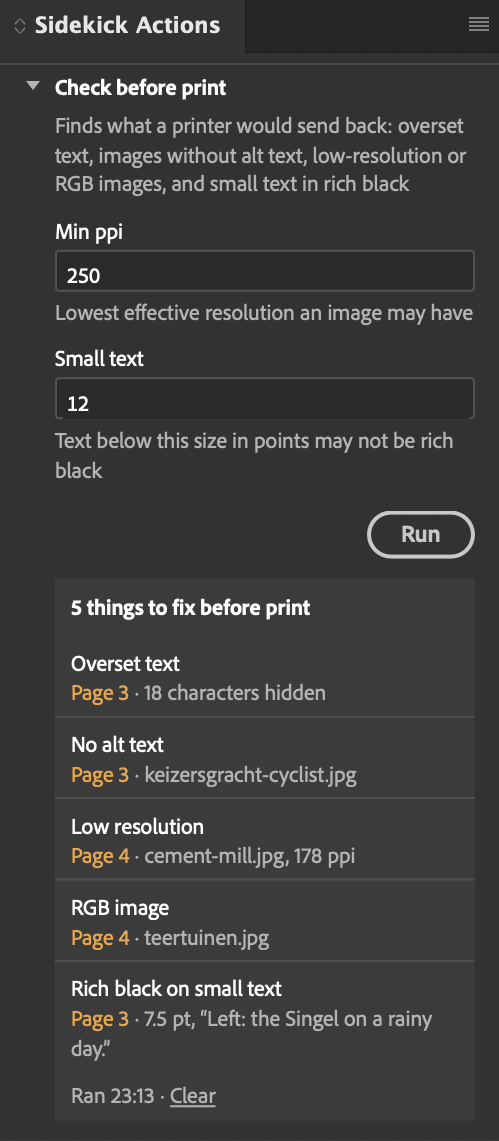
Settings: Sidekick builds the form for you
An action can ask you for input before it runs. And you don’t have to build anything for that: Sidekick does. Every setting an action has turns into a field in the Sidekick Actions panel, with a label, a short explanation and a value filled in for you. Change the value, click Run, and the action uses it.
That’s no small thing. In a hand-written InDesign script, the dialog that asks for input is often more work than the script itself. With an action, you get it without asking.
The print check has two of these settings: the minimum resolution and the smallest text size allowed in rich black. Your assistant didn’t bury those numbers in the code. It made them settings, and the panel turned them into the two fields you see in the screenshot above: Min ppi (250) and Small text (12).
That’s what makes one action useful for more than one job. Newsprint at 200 ppi and an art book at 300 ppi is the same action with a different number in the box.
Settings come in a few kinds, and the panel gives each kind its own field:
| Kind | In the panel | For example |
|---|---|---|
| Number | A field | The minimum resolution, Min ppi: 250 |
| Text | A field | The name of a paragraph style to look for |
| Yes or no | A checkbox | Whether to include parent pages in the check |
| Choice | A menu | Scope in Alt text audit: the whole document, or only the selection |
Every setting has a default, so Run always works straight away. Nothing has to be filled in first.
You decide what becomes a setting. If you know you’ll want to change something later, say so when you make the action: “make the resolution and the text size settings I can change”. Or afterwards: “add a setting to check only the selection”. From the chat you can set them in plain words, too: “run check-before-print with a minimum of 300 ppi”.
What an action gives back
Every run ends with a result, and not every result looks the same. What you get depends on what the action does.
A list of things it found. This is the print check: a summary line, 5 problems, then a row for each problem. Each row says where the item is, on which page, on a parent page or on the pasteboard, and clicking a row takes you there. InDesign turns to the page and selects the frame, or the text the row is about.
So a check isn’t a list you have to go and look up item by item. It’s a list of links into your document. Long reports show the first ten rows, with a button for the rest.
Just a sentence. Not every action needs rows. One that finds nothing says so: Ready to print: no overset text, missing alt text, low-res or RGB images, or small rich black text. One that does a job says what it did, for example how many captions it restyled. And one that can’t run says why, in words that tell you what to do: there’s no document open, or it needs a text frame selected first. One line, and you know where you stand.
A preview, then the changes. Some actions don’t just look, they change things: replace straight quotes, fix the hyphenation language, rename frames. Those get two buttons in the panel, Check and Apply. Check runs the action without changing anything and reports what it would change, row by row, so you can click through and look first. After a check, the second button says how much is coming, for example Apply 42 changes. You decide.
When it does apply, the whole run is one undo step, named after the action. One Edit › Undo, and everything it did is gone.
Details for your assistant. Run from the chat, an action also hands your assistant the details behind the report. So “run check-before-print and fix whatever you can fix safely” works: the assistant knows exactly what was found, and where.
Below every report in the panel you’ll see when it ran, and a link to clear it.
Four examples come built in
Four actions come with Sidekick. They’re examples, not a toolkit: they show what an action can look like, and they give your assistant something to learn from. When you ask it to make an action of your own, it can look at how these are built (how they report, how they check before they change anything) and do the same. You can run them, of course, and they’re a quick way to see the panel at work:
- Overset hunt finds text frames with hidden text, with how many characters and on which page, and table cells that overflow.
- Alt text audit lists placed images without alt text, skipping images marked as decorative. It can also mark the frames it finds in the Layers panel, so you can see where to start.
- Rich black sweep finds text and objects in the Registration colour, and small text set in rich black, both of which can print badly.
- Dutch typography checks Dutch text against the rules: language and hyphenation, dashes, thin and non-breaking spaces, ellipses, apostrophes, CO₂ and m² and double spaces. Check first, then apply.
Once you have actions of your own, you probably won’t want the examples in the way. Choose Toggle Built-in Actions from the panel’s menu to hide them, and the panel shows only yours. Your assistant can still learn from them. And if you save an action under the same name as a built-in one, yours replaces it. Delete yours, and the built-in one comes back.
It’s a real script, and it’s yours
Under the hood, an action is a small JavaScript file with a short description on top: its name, what it does, and its settings. It lives in Documents/Sidekick Actions on your computer. You can open it, read it, back it up or mail it to a colleague.
It isn’t a black box, and it isn’t finished once it’s saved. When it needs to do something differently, say so: “make check-before-print also look for missing fonts”. Your assistant updates the action under the same name, and the panel picks up the new version. A report from before the change is marked earlier version; the next run uses the new one.
That matters for three reasons:
- It does the same thing every time. An action runs as written. It doesn’t ask the AI again, so it can’t come up with a different idea the next time.
- It’s fast. A check that took your assistant a minute of thinking takes InDesign a second.
- You own it. The action is a file on your computer, not something kept on our servers.
This is why actions are the answer for people who’d like to script InDesign without scripting. You describe the job in your own words, check that the result is right, and keep it. The code is there if you ever want to look at it, but you never have to.
What you need
Actions come with Sidekick 1.0.34, as part of your Sidekick subscription; there’s nothing extra to buy. Saving an action works in any assistant connected to Sidekick. Running one from the panel needs no assistant at all.
- The Sidekick server updates itself. Saving and running actions from the chat works as soon as the update arrives.
- The Sidekick Actions panel is part of the InDesign plugin. To get it, update Sidekick from Adobe Exchange or the Creative Cloud app. Until you do, actions run from the chat only.
A few things worth knowing:
- From the chat, an action gets 30 seconds. A long run may still finish in InDesign after the chat has stopped waiting.
- On Windows with Controlled Folder Access (ransomware protection) switched on, Windows may refuse to let Sidekick save into Documents. Sidekick tells you straight away, and explains how to allow it or choose another folder.
- An action works on the document that’s open. Open a document first, and the panel will let you run it.
Try it
Pick the thing you did last week that you’ll do again next week. Ask your assistant to do it once, look at the result, and when it’s right, say: “save this as an action”. Then find it in the panel.
That’s a script. You just didn’t have to write it.