How it works
Where you type, which document Sidekick works on, and what to do when it doesn’t connect.
This guide is best read in order. Fixing a specific problem? Help is organised by problem.
You type in your assistant
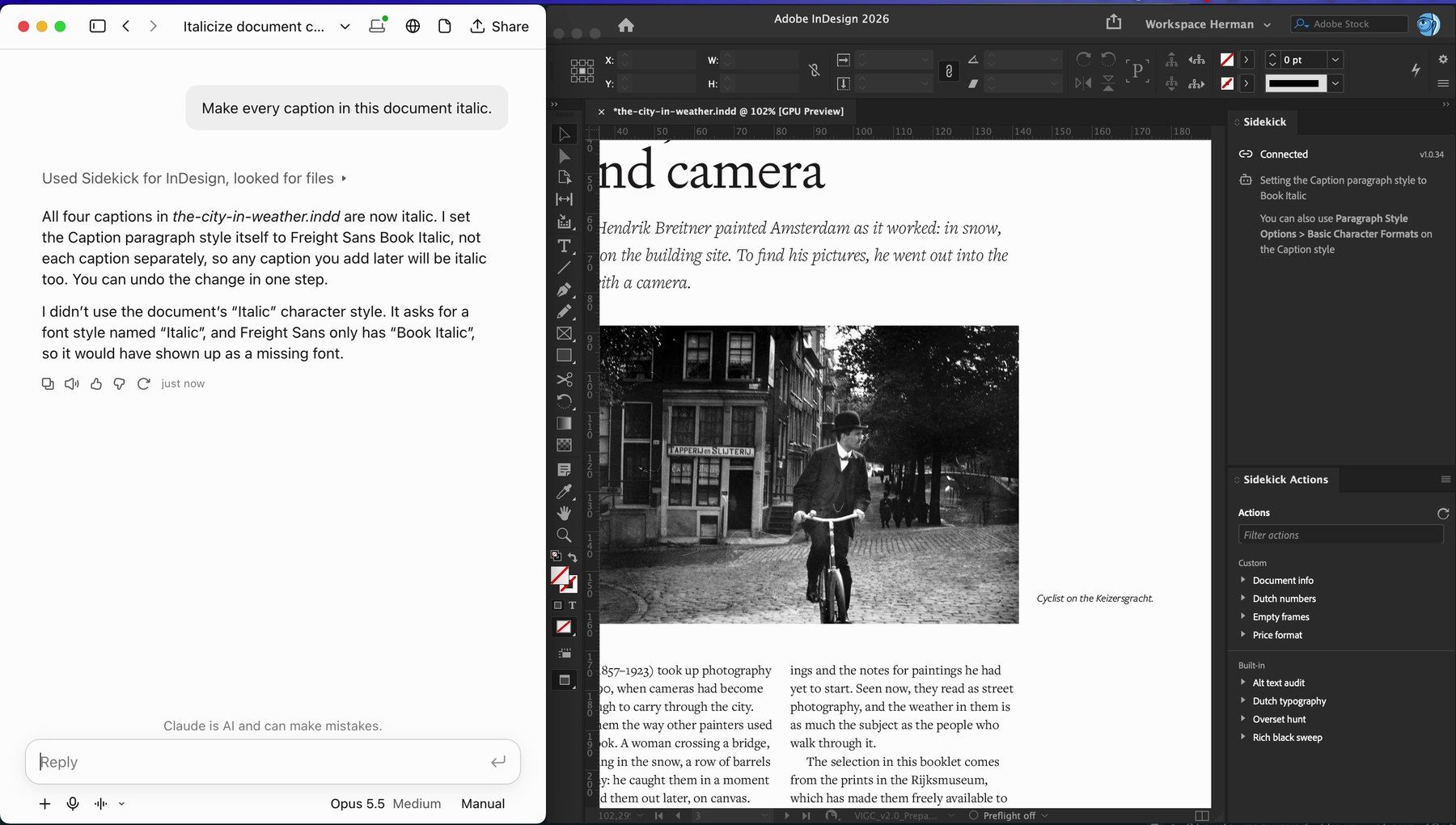
You type in your AI assistant, not in InDesign. Your assistant does the work in InDesign through Sidekick, and the Sidekick panel shows what it is doing. The panel has no box to type in. Don’t see it? Open it with Plug-Ins → Sidekick → Sidekick.
It works on the document in front
Sidekick works on the document that is in front in InDesign, or on a new one it creates, and only while InDesign and your assistant are both running. With several documents open, bring the one you mean forward, or name it.
Check that it’s connected
With InDesign open, type “sidekick health” in your assistant:
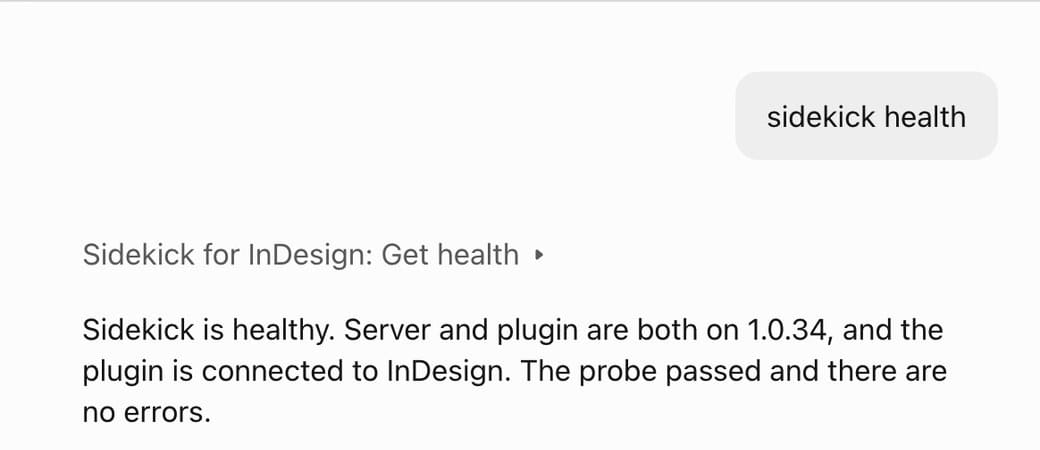
If it answers like this, you’re ready. If it doesn’t, check which of these applies:
The panel says “Can’t reach your AI Assistant”: your assistant is closed, or Sidekick isn’t installed in it. What to check
Your assistant doesn’t know what “sidekick health” means: Sidekick isn’t installed in your assistant, or isn’t switched on there. Install guide
You use Claude through your company: your administrator may have to allow Sidekick first. How
Something this guide doesn’t answer? Write to [email protected]. A person answers.
Not using Sidekick yet? Install it.