Accessible Math in InDesign PDFs: Formula Tags and ActualText
In Mathematical Typesetting in InDesign with LaTeX and Sidekick we showed how Claude converts LaTeX formulas to crisp vector graphics and places them in InDesign with proper baseline alignment. This post picks up where that one left off—at the question a scholarly publisher evaluating the workflow asked us: in the final exported PDF, are those equations searchable and selectable text, or just pictures?
The honest first answer is: pictures. The workflow converts each formula to an SVG, and the glyphs in that SVG are vector outlines. They print beautifully at any size, but in the exported PDF there’s no text there at all—nothing to select, nothing for a screen reader to say, nothing for digital archiving requirements to point at. For a publisher with accessibility obligations, that reads like a hard stop.
But it turns out the fuller answer is more interesting, because no PDF math is as texty as it looks.
What “selectable math” even means in a PDF
PDF has no math model. What a PDF calls text is glyphs positioned on the page; a built-up fraction is glyphs scattered in two dimensions plus a drawn rule. Even in a PDF produced by LaTeX itself—live text, embedded fonts—try copying the quadratic formula and pasting it somewhere: you’ll get the numerator and denominator run together, superscripts collapsed into ordinary digits, a lone √ floating mid-string. Selectable, yes. Meaningful, not really.
The PDF standard’s actual answer for this is ActualText: a piece of replacement text attached to a region of content, saying “whatever this looks like, this is what it says.” Screen readers speak it, Acrobat’s copy and text extraction use it, and PDF/UA—the accessibility standard archives care about—expects every equation to be a Formula-tagged element carrying exactly that. The visual glyphs can be outlines; the meaning rides along in the tags.
Which changes the question from “can the SVGs become text?” (no) to “can the workflow produce Formula tags with ActualText?” And that answer is yes—automatically.
Step one: ActualText at placement
To demonstrate, we’ll use InDesign’s native Math Expressions feature (InDesign 2025 and newer): give it MathML and it renders a crisp equation on the page. It’s even scriptable—doc.createFromMathML(…)—so Claude can place equations directly. But the rendered equation is a graphic, and on PDF export the MathML is discarded entirely; what reaches the PDF is vector paths, exactly like any other equation graphic. The recipe below doesn’t care: it works the same for any equation placed as a graphic, whatever produced it.
InDesign lets you attach alt text and ActualText to any placed object—it’s the same Object Export Options dialog we used for auditing image alt text. Filling it in by hand for two hundred equations is nobody’s idea of typesetting. But Claude is placing each equation anyway, and at that moment it’s holding the one thing you want in the tag: the equation itself.
So the placement step gains one instruction: for every formula, set the ActualText to a plain-text form of the equation, and the alt text to a spoken form. For the quadratic formula, that’s:
- ActualText:
x = (-b ± √(b² − 4ac)) / 2a - Alt text: “x equals minus b plus or minus the square root of b squared minus four a c, all over two a”
Export with Create Tagged PDF on, and both survive—Unicode intact, including the ±, √, and superscripts. We verified by taking the exported PDF apart: the equation appears in the structure tree as a tagged element carrying both entries, even though its visible content is pure vector paths.
Step two: from Figure to Formula
One detail is out of InDesign’s hands: it tags every placed object as a Figure. PDF/UA wants equations tagged Formula. InDesign offers no way to change that—but the workflow doesn’t end at InDesign. Claude is orchestrating the whole pipeline, and a tag rename in a finished PDF is a small post-processing step. With the Python library pikepdf:
import pikepdf
from pikepdf import Name

pdf = pikepdf.open("book.pdf")

def walk(elem):
    if not isinstance(elem, pikepdf.Dictionary):
        return
    if elem.get("/S") == Name("/Figure") and elem.get("/ActualText"):
        elem.S = Name("/Formula")
    kids = elem.get("/K")
    if isinstance(kids, pikepdf.Array):
        for kid in kids:
            walk(kid)
    elif kids is not None:
        walk(kids)

walk(pdf.Root.StructTreeRoot.get("/K"))
pdf.save("book-accessible.pdf")
Every Figure that carries ActualText—which, in this workflow, is exactly the equations—becomes a Formula. After the pass, the structure tree of our test document reads:
Document
└─ Article
   ├─ Formula  (ActualText: "x = (-b ± √(b² − 4ac)) / 2a")
   └─ Story
      └─ P  "The quadratic formula is shown above."
That is what a PDF/UA checker wants to see for an equation. And it’s not just visible to command-line tools—here’s the finished PDF in Acrobat, with the equation’s tag opened from the Accessibility tags panel:
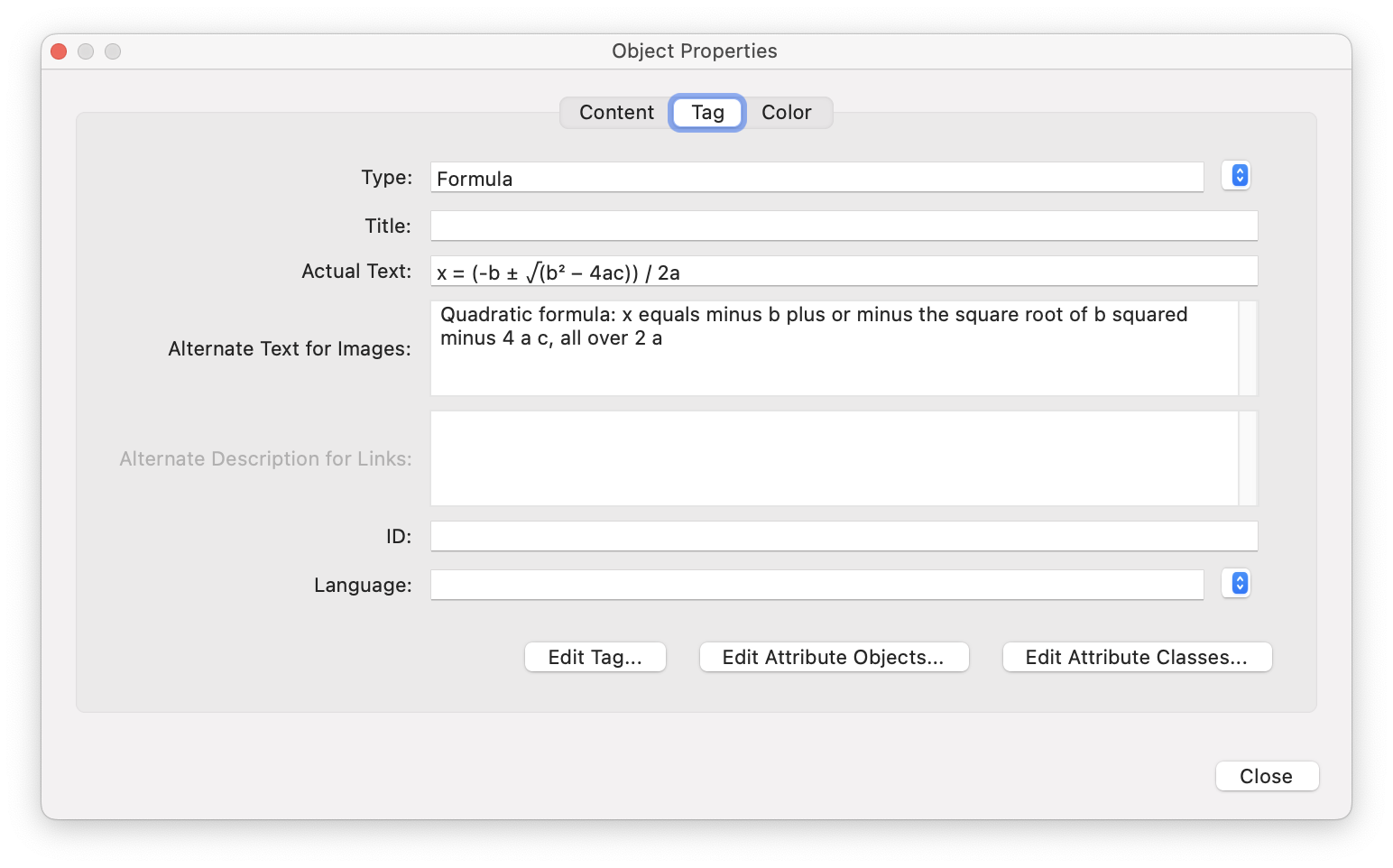
The tag’s visible content is nothing but vector paths; the equation itself rides along in the Actual Text. This dialog is also the manual alternative—one trip through it per equation, for every equation in the book—which is precisely the work being automated.
What you get, and what you don’t
Worth being precise about, because this is where evaluations go wrong in both directions:
- You get: equations screen readers can speak, text extraction that returns the formula (in a linearization you chose—it can even be the raw LaTeX), and the tag structure archival standards ask for. All generated from source, for every formula, with no per-object dialog work.
- You don’t get: glyphs you can select with a cursor, or search hits in every PDF viewer. The visible math is still outlines. Viewers that honor the tags (Acrobat, assistive technology) see the text; a naive text dump doesn’t. And the rendering still uses MathJax’s font sets—your house math font doesn’t come along.
And to be clear about scope: nothing here is specific to native math expressions. An equation placed as an SVG graphic—the LaTeX pipeline from the original post included—exports the same way (outlines, tagged Figure) and takes the same treatment through the same export options. The recipe attaches meaning to equation graphics, wherever they came from.
If your requirement is genuinely glyph-level live text in a specific math font, that’s a different tool category—a dedicated equation editor plugin that sets math as InDesign text. But if the requirement behind the requirement is “our archived PDFs must be accessible and the math must survive as data,” the tags are the standards-compliant way to meet it, and they’re automatable end to end.
Try it
The accessible-formulas example packages the whole thing—the recipe as instructions Claude picks up automatically, and the re-tag script—and needs nothing beyond Sidekick, InDesign 2025+, and Python with pikepdf. Point Claude Code at the folder and ask:
Create a new A4 document in InDesign and place two equations on page 1 as native math expressions from MathML: the quadratic formula, and Euler’s identity. Give each equation an ActualText and a spoken-form alt text through its object export options, export a tagged PDF, run retag-formulas.py on it, and show me the resulting structure tree.
The equations land on the page, the meaning lands in the tags, and the accessibility checker has nothing left to say about your math.