Sidekick for Teams
You have a seat. Set it up.
Five steps. Have InDesign, Claude (or any other AI assistant), and access to the inbox your invitation went to.
- Step 1 · only if you have it
Remove Sidekick for InDesign (from Adobe Exchange)
Creative Cloud > Manage Plugins > uninstall. Paying for it? Cancel that too.
- Step 2
Install the Sidekick Direct plugin
Quit InDesign first. Then double-click the file. Adobe warns you, and Creative Cloud shows an orange icon: expected, as it comes from East Pole, not Adobe's Marketplace.
DownloadVersion 1.0.38
Your IT team can verify this file.
- Step 3
Add Sidekick to your assistant
Follow the guide for your assistant. Skip its Adobe Exchange step.
Using a seat means you agree to the Terms. What the license check sends, and who sees it: Privacy Policy.
- Step 4
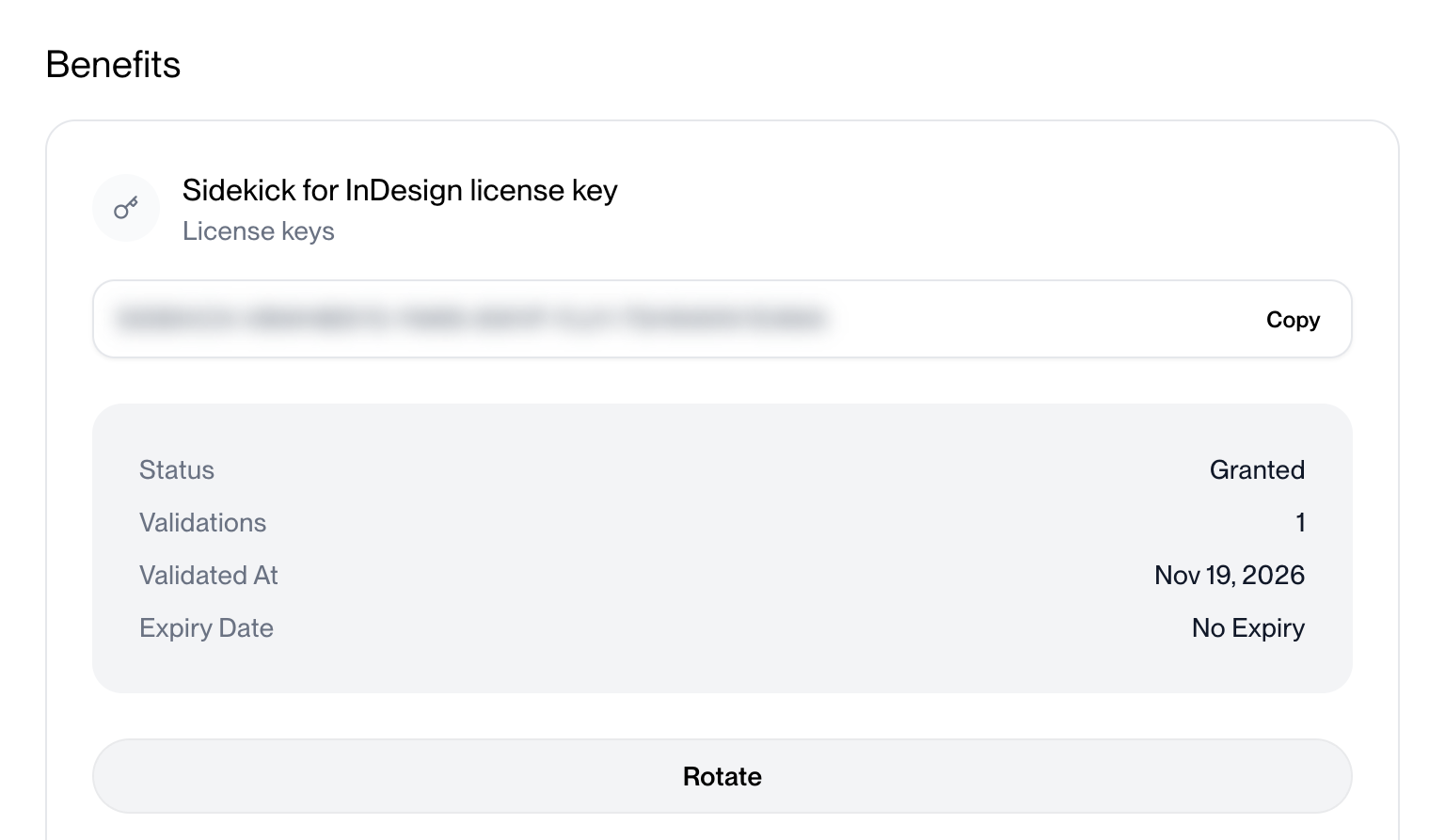
Copy your key
Polar emailed you "You've been invited to access Sidekick for Teams". It names the address of whoever bought the seats. Click Claim seat within 24 hours.
You land in Polar's portal. Under Sidekick for InDesign license key, click Copy. The key starts with
SIDEKICK-and is never emailed.Invitation expired? Ask for a new one. Need the key again later? Sign in to Polar's portal with an emailed code.
- Step 5
Paste it in the panel
Enter key…, paste, Use key. Then ask your assistant for something in InDesign.
In the panel, never in a chat.
Your seat is now tied to your Adobe account. A second computer of your own? Copy your license file.
Paste, Use key: License key needed becomes License…
- License key needed Your assistant says so too. Do step 5.
- Key not accepted Copy the whole key again.
- Seat already in use Active for another Adobe account or on another computer. Remove that activation in Polar's portal, then Check again. Your own other computer? Copy your license file from it.
- Computer removed from seat Fix license…, then Activate this computer again.
- License not checked yet Keep working. Sidekick tries again later.